How to Delete or Deactivate an Electronic Collection in Alma
(Updated: 12/30/2025)
Deleting an Electronic Collection
Find the electronic collection in Alma by searching the Institution Zone for Electronic Collection by Electronic Collection Name.

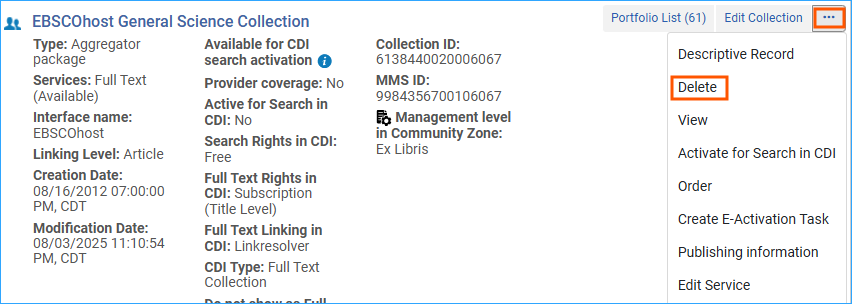
Select the action menu next to the collection and select Delete.
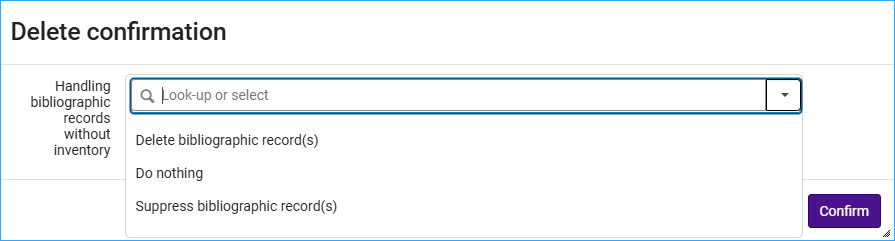
A delete confirmation message appears. In the message select how you want to handle bibliographic records without inventory. (ODIN Office recommends Delete bibliographic record(s).) Click Confirm.
Deleting an electronic collection deletes the electronic collection and its associated portfolios.
Deactivating Electronic Collections and Portfolios
Below are instructions for deactivating the electronic collection and its portfolios. If the bibliographic records for portfolios are not suppressed, the portfolios in the Electronic Collection will continue to appear in Primo VE even after deactivation. However, the service information (service area) for those portfolios will no longer be displayed in Primo VE.
Deactivating the Electronic Collection
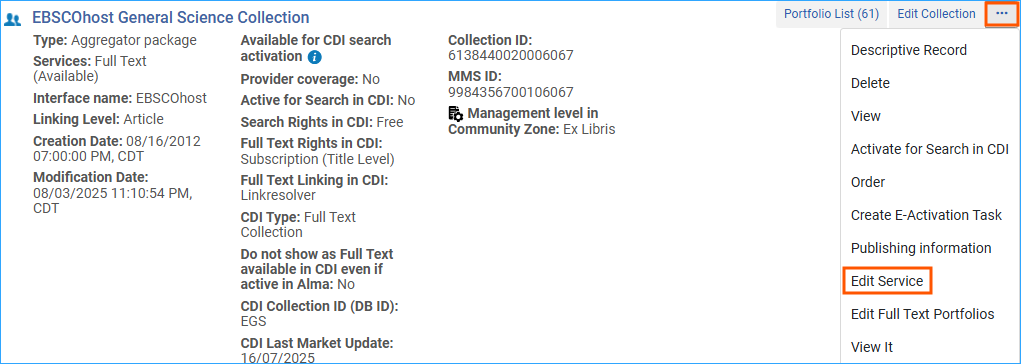
Select the action menu next to the collection and select Edit Service.
On the Activation tab select Not Available. Click Save.

Deactivating Portfolios in the Electronic Collection
Select the action menu next to the collection and select Edit Service.
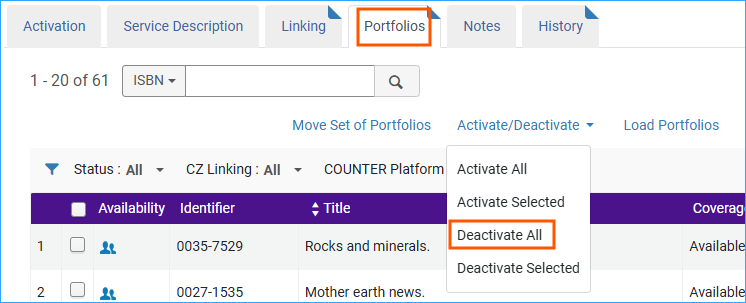
On the Portfolios tab, click on Activate/Deactivate menu option and select Deactivate all. Click Save.
Related Trainings:
Activating an Electronic Resource from the Community Zone in Alma