Simply Reports: How to Export Bibliographic Records from Polaris
Updated: 12/23/2025
Create a Record Set
First create a record set containing the bibliographic records you want to export. Using the Find tool, search for bibliographic records. Then select the records you want to add to the set using the Ctrl key and clicking to select the records.
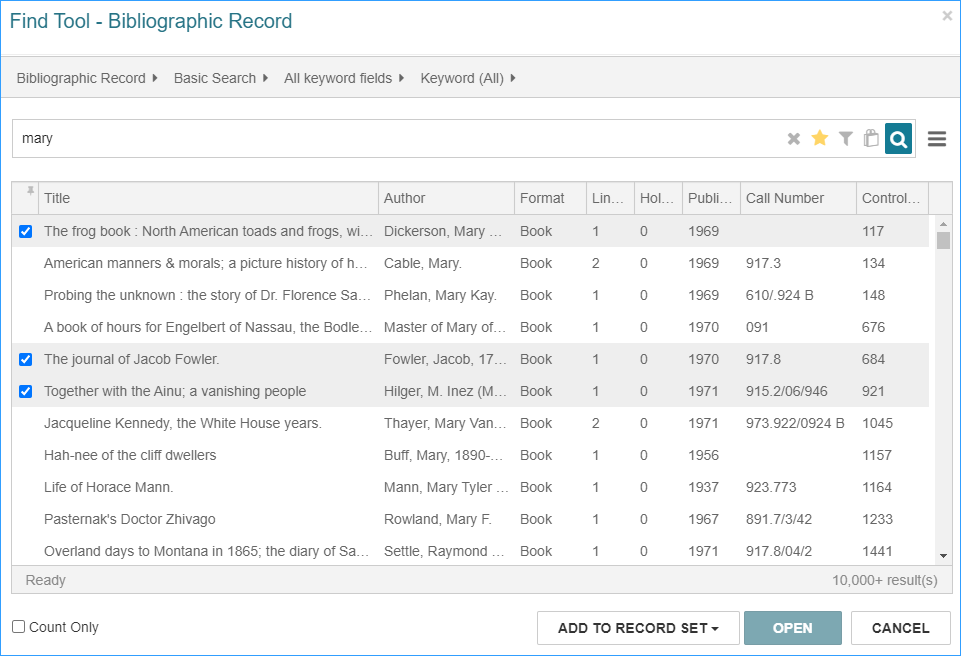
Then click Add to Record Set, select either new for a new set or existing to add to a set that is already created.
Simply Reports Export Express
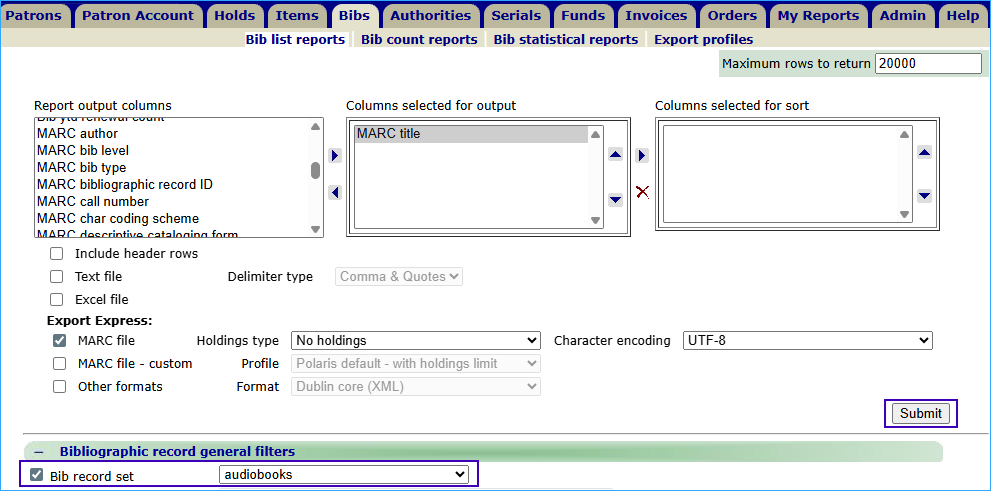
Next, go to Simply Reports, and select the Bibs tab.

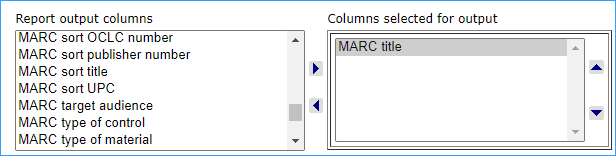
Select one column for output. Either MARC title or MARC bibliographic record ID are good choices because every bib must have a title or record ID.
Find Export Express in BOLD. Check the MARC file box. You can choose to include holdings info with your export if you need to. Update character encoding to UTF-8.

Under Bibliographic record general filters, check the box Bib record set and select your record set, and click Submit.
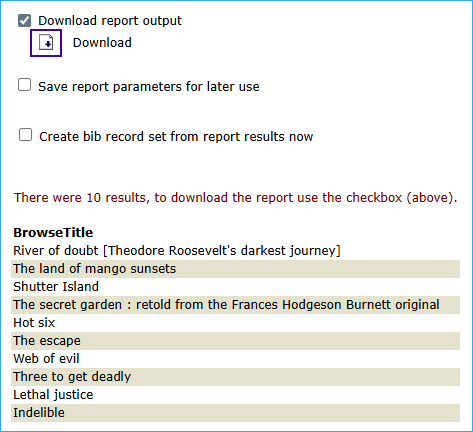
The Report preview appears. Check the Download report output box. Then click on the Download icon to download the MARC records to your computer.
Related Training: